There are 5 steps to set up Orbiri on your child's device. Follow the instructions on the app and use this guide if you need help along the way.
Install Management profile
Download the profile
Tap Download Profile in Orbiri. The profile will download in your browser.
Stolen Device Protection
If enabled, Apple may require a 1-hour security delay before you can download a profile. Start the delay and Apple will notify you when it has ended. Then return to Orbiri Screen setup and tap the green 'Profile downloaded' button to download the profile again.
Go to Settings
Once downloaded, close the browser and go to:
Settings → General → VPN & Device Management
Install the profile
Select the downloaded profile and follow the instructions to install it.
Allow app management
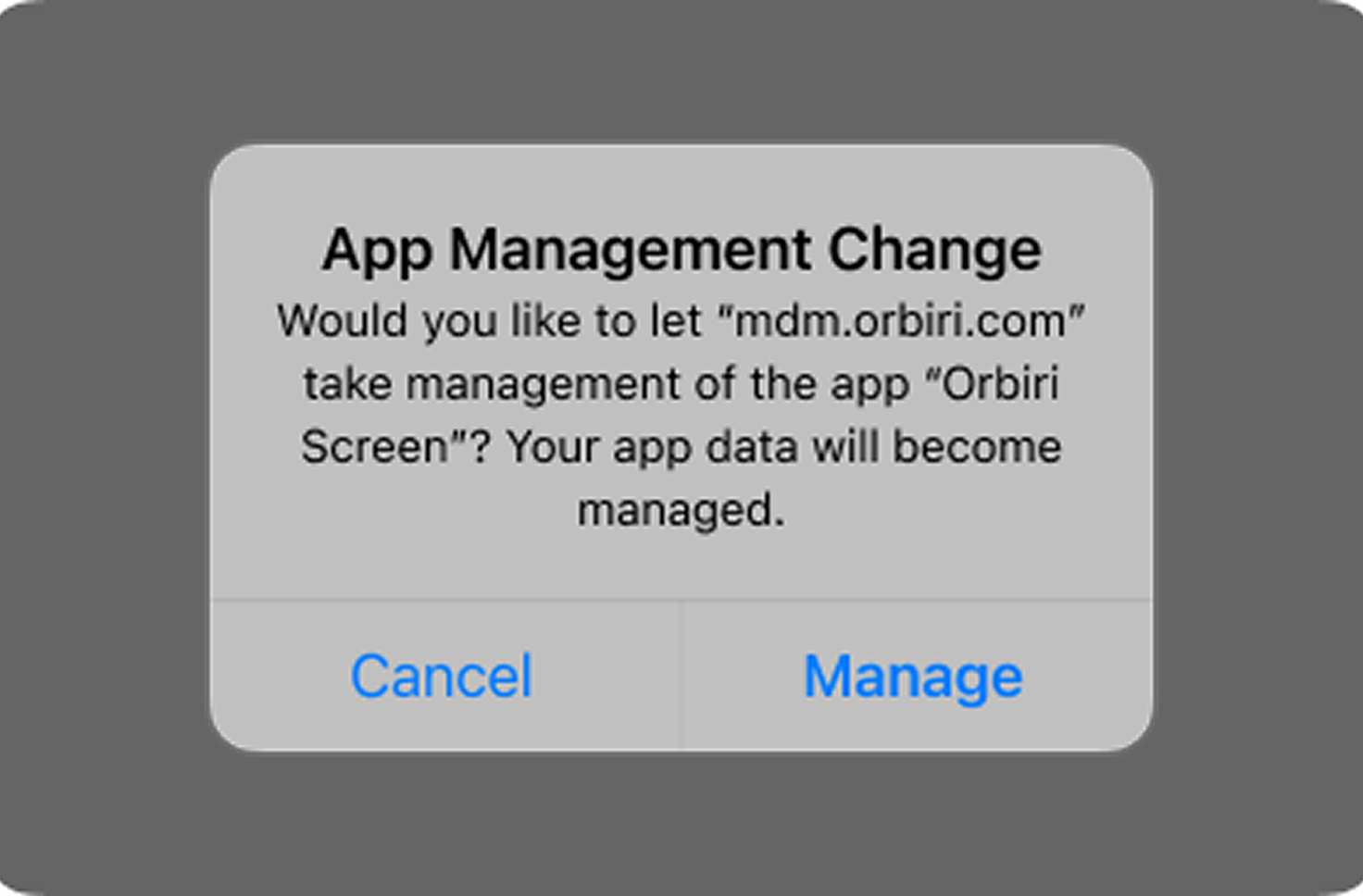
After installing the profile, wait for Apple's App Management Change message.
Tap Manage. You'll return to Orbiri and Step 1 will soon show as green/complete.
App update
You may be asked to update Orbiri. If an update prompt appears tap Update.
Approve Apple screen time
Follow the prompt in Orbiri.
Install Orbiri Screen Shield
Follow the prompt in Orbiri.
Allow notifications
Follow the prompt in Orbiri.
Link to parent account
Ask your parent/carer to open the Orbiri Parent app and tap the Link device button under your name to get the code.
See our data privacy policy